
What is Log footage, and why does it look gray?
The first time you shoot Apple Log on an iPhone or D-Log M on a DJI camera, the result looks flat, gray and drained of color. Nothing went wrong. Log is not meant to be watched as is. It is an undeveloped negative.
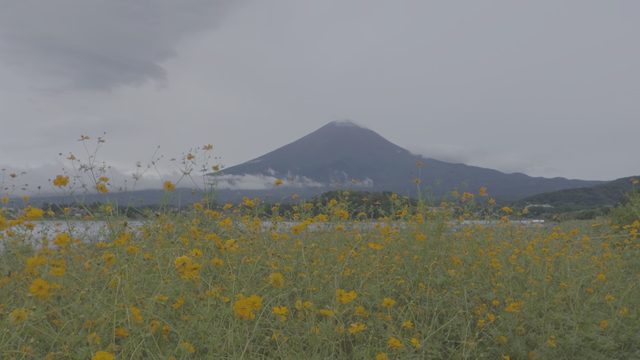
Regular video vs. Log video
Regular video (Rec.709, or the iPhone's default HDR) has contrast, saturation and highlight compression applied in the camera, so it is ready to watch. The price is information thrown away at capture: a bright sky becomes flat white, shadows become flat black, and the colors are locked in.
Log works the other way. The camera squeezes a wide range of brightness, from deep shadows to bright highlights, into the available values along a logarithmic curve, so every stop of exposure gets a similar share of values. Highlights are not clipped early, shadows keep their detail, and the decisions are left for the grade.
The cost is a gray-looking image: blacks are not black, whites are not white, saturation is low. Screens display video with the regular curve, and Log uses a different one.
Why 10-bit matters
Because Log spreads a wide range of brightness across the values, each stop gets fewer of them. Grading puts contrast back, which stretches those values apart again. With 8-bit (256 levels per channel), smooth gradients such as sky and walls break into bands; 10-bit (1,024 levels) has far more room. That is why Log is recorded in 10-bit, and why import, grading and export should all stay 10-bit.
From gray footage to a normal picture
Turning Log into a normal image takes a conversion that matches the specific log format: it maps the log curve and gamut to Rec.709 for display. Camera makers publish official conversion LUTs, such as Apple's “Apple Log to Rec.709” and DJI's “D-Log M to Rec.709”.
Log formats are not interchangeable. Apple Log, Apple Log 2, D-Log M and D-Log differ in curve or gamut, and the wrong conversion shifts both brightness and color (see What is a LUT's input color space).
In Develop Log this step is automatic:
- Tap New Project and pick the video in Photos. The app identifies the log format from the file's tags and DJI's metadata.
- Natural applies the official LUT for that format (for DJI, the table for your camera model), and the picture returns to normal contrast and color.
- Pick a film look, or adjust exposure, white balance and contrast under the look, then export 10-bit SDR or HDR video.
When to shoot Log
- Good fit: high-contrast scenes (backlight, sunsets, interiors with bright windows), a consistent look across clips, or when you plan to grade.
- Less useful: quick clips you want to post right away without grading. Regular video or HDR is ready to use.
- Log does not replace correct exposure. Underexposed Log gets noisy when brightened, and clipped highlights cannot be recovered. See How to expose and white balance Log footage.
Quick answers
Why is my Log video gray on social media?
Because the original, unconverted file was posted. The platform does not know it is Log and shows it as regular video. Convert and grade first, then export.
Is HDR video the same as Log?
No. HDR (such as the iPhone's default HLG) is a finished format for HDR screens. Log is an intermediate format for grading. After grading Log you can export either SDR or HDR.
Can you grade Log properly on a phone?
Yes. Develop Log previews 4K Log in real time on the GPU of an iPhone or iPad, processes in 16-bit precision and exports HEVC 10-bit. Restoring, primary grading, official looks and export are free.