
How to color grade Apple Log 2 on iPhone
Apple Log 2 looks almost identical to Apple Log when you first open it: flat, gray, low contrast. The difference is in the color, and it is exactly the part that breaks when you grade it with the wrong LUT.
What is Apple Log 2?
Apple Log 2 is the log recording profile Apple introduced with iPhone 17 Pro. Like Apple Log, it stores a wide dynamic range in a flat-looking image so that you can decide on contrast and color later, in the grade.
The two profiles differ in one important way:
| Apple Log | Apple Log 2 | |
|---|---|---|
| Transfer curve (how brightness is encoded) | Apple Log curve | The same Apple Log curve |
| Color gamut (which primaries the RGB values refer to) | Rec.2020 | Apple Wide Gamut |
| Official conversion | Apple Log to Rec.709 LUT | Apple Log 2 to Rec.709 LUT |
Because the curve is the same, brightness and contrast behave the same way in both. Because the gamut is different, the same RGB numbers mean different colors.
Why an Apple Log LUT looks off on Apple Log 2
A LUT does not know what footage it is looking at. An Apple Log to Rec.709 LUT assumes its input is the Apple Log curve and Rec.2020 primaries. Feed it Apple Log 2 and the first half of that assumption holds, the second does not:
- Exposure and contrast look right. Grays stay gray and the tonal curve is correct, so the result looks plausible at a glance.
- Colors are shifted. Apple Wide Gamut values are read as if they were Rec.2020, so saturation and hue come out wrong, most visibly in strongly colored areas such as foliage, sky, neon and skin.
That is what makes the mistake easy to miss: nothing looks broken, the colors are just not what the camera saw. The same applies to creative “Apple Log” looks you buy or download. Most of them were built for Apple Log footage from earlier iPhones.
The correct starting point
Apple publishes an official Apple Log 2 to Rec.709 LUT on its developer site, separate from the Apple Log one. Use it as the technical conversion for Apple Log 2 footage. If you want to use a look designed for Apple Log, convert the Apple Log 2 colors to Apple Log (Rec.2020 primaries) first, then apply the look.
Grading Apple Log 2 in Develop Log
Develop Log handles both steps for you, so Apple Log 2 can be graded the same way as Apple Log:
- Open the clip. Tap New Project and choose the video in Photos. The app imports the original file, keeping the 10-bit log data instead of a converted copy.
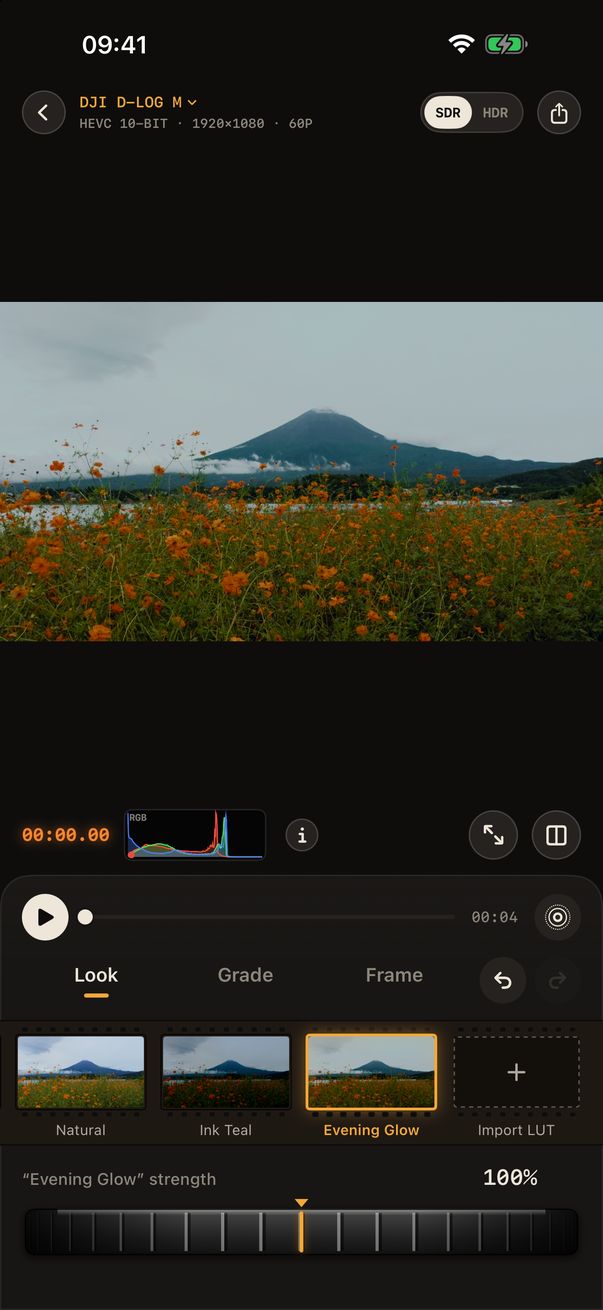
- Check the format. Apple Log 2 is recognized from the file's tag and shown in the info bar above the picture. If a clip was ever mislabeled, tap the format to set it by hand.
- Start from Natural. The Natural look uses Apple's own Apple Log 2 to Rec.709 LUT, so the starting image is the one Apple intends.
- Pick a look, or use your own LUT. The official film looks work on Apple Log 2. Imported LUTs set to “Apple Log” input work too: the app converts Apple Log 2 to the equivalent Apple Log at the very start of its color pipeline, so a LUT made for Apple Log sees the colors it expects.
- Grade under the look. Exposure, white balance, contrast, highlights and shadows and the color wheels act before the look, in linear light and in photographic stops, the way a colorist works under a LUT in DaVinci Resolve. Curves, secondary grading and texture follow after the look.
- Export. Export HEVC 10-bit in SDR (Rec.709) or HDR (HLG), or save any moment as a Live Photo. The HDR version follows the SDR grade, so you only grade once.
One limitation to know about. Apple Wide Gamut is larger than Rec.2020. When Apple Log 2 is converted into the app's working space, the few extremely saturated colors outside Rec.2020 are pulled to its edge. In everyday footage this is rarely visible. The Natural look itself always uses Apple's official table.
Quick answers
Can I use my Apple Log LUTs on Apple Log 2 footage?
Not directly in other apps. The colors will be shifted. In Develop Log, yes: import them with “Apple Log” as the input space and the app converts Apple Log 2 first.
Is Apple Log 2 brighter or darker than Apple Log?
Neither. The curve is the same, so a correctly exposed clip has the same brightness levels in both profiles.
Do I need a computer to grade Apple Log 2?
No. Develop Log grades with a real-time GPU preview on iPhone and iPad, including 4K, and exports 10-bit video straight to Photos.